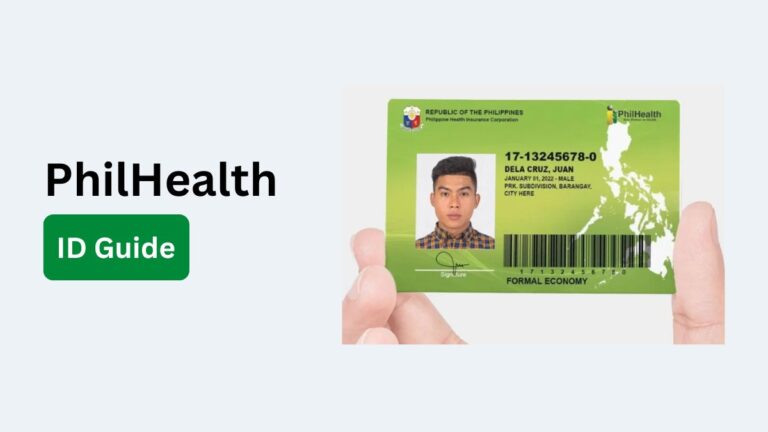
PhilHealth Online Appointment: Complete Guide 2026
You can book a PhilHealth appointment online before visiting a PhilHealth office. This can help you avoid long queues and make your visit more organized. The online appointment process is useful when you need to update your membership details, request documents, check contribution records, or access other PhilHealth services.
But booking an appointment is not always as simple as choosing a date and time. You may need to select the correct PhilHealth office, service type, and prepare specific documents before your visit.
In this guide, you will learn how to book a PhilHealth online appointment, what requirements you need, how to check or reschedule an appointment, and what to do when no appointment slots are available. You will also learn which PhilHealth transactions may be completed online without visiting an office.
What Is a PhilHealth Online Appointment?
A PhilHealth online appointment is a scheduled visit that you arrange through PhilHealth’s online appointment system before going to a PhilHealth office. It allows members and other eligible individuals to choose a PhilHealth office, select a service, and reserve an available date and time.

The main purpose is to make in person transactions more organized. Instead of visiting an office without knowing how long you may have to wait, you can schedule your visit ahead of time.
Depending on the service and the PhilHealth office, an appointment may be useful for transactions such as updating member information, requesting documents, handling contribution concerns, or processing other membership related services.
After booking, you should keep your appointment confirmation and bring the required documents on the scheduled date. It is also important to check the specific requirements for the service you selected because they can vary depending on the transaction.
Who Can Book a PhilHealth Online Appointment?
PhilHealth online appointments are generally intended for people who need to visit a PhilHealth office for a specific transaction or service. The person booking the appointment should provide accurate information and make sure they meet the requirements for the selected service.
People who may need or be able to book a PhilHealth appointment include:
- PhilHealth members: Members can schedule appointments for eligible transactions involving their membership, records, contributions, or other PhilHealth concerns.
- Employed members: Employees may book an appointment when they need to handle a PhilHealth transaction that cannot be completed through their employer or online.
- Self-employed and individually paying members: These members may schedule a visit for concerns related to membership registration, records, contributions, or account information.
- Senior citizens: Senior citizen members may use an appointment when they need assistance with eligible PhilHealth transactions or membership concerns.
- OFWs: Overseas Filipino Workers may need to arrange an appointment when handling PhilHealth matters that require an in-person transaction.
- Dependents: A member may need to arrange a transaction involving an eligible dependent. The required documents can vary depending on the service.
- Employers and authorized representatives: Employers or their authorized representatives may need appointments for employer-related PhilHealth transactions and inquiries.
- Authorized representatives: In some cases, a member can have another person handle a transaction on their behalf. The representative may need an authorization letter, valid identification, and other supporting documents.
PhilHealth Services That Require an Appointment
Not every PhilHealth transaction requires an in person appointment. However, some services may require or benefit from a scheduled visit when they cannot be completed through PhilHealth’s online channels. The exact appointment requirements can also vary depending on the PhilHealth office and the type of transaction.
Common services that may require an appointment include:
- Member registration and updating of records: You may need to visit a PhilHealth office to register as a member or update personal information such as your name, date of birth, address, or civil status.
- PhilHealth ID related services: An appointment may be useful when you need assistance with PhilHealth identification documents or related membership verification.
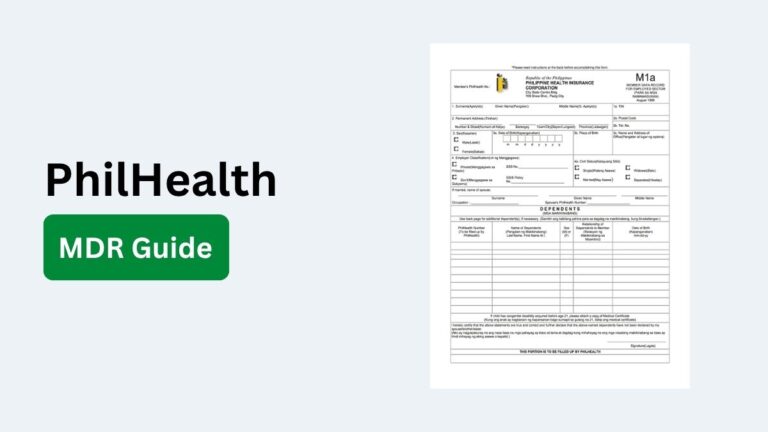
- Member Data Record (MDR) requests: If you need help obtaining or correcting your MDR, an office visit may be required for certain situations.
- Contribution concerns: Members can seek assistance with contribution records, payment history, missing contributions, or other membership contribution issues.
- Benefit related inquiries: You may need to visit an office when you have questions about PhilHealth benefits, eligibility, coverage, or requirements that cannot be resolved online.
- Dependent registration and updates: Transactions involving qualified dependents may require supporting documents and an in person verification process.
- Employer related transactions: Employers and authorized representatives may need to schedule a visit for certain employer registration, account, contribution, or compliance concerns.
- Record corrections and verification: An appointment may be necessary when information in your PhilHealth records needs to be verified or corrected and the transaction cannot be completed online.
- Other specialized PhilHealth transactions: Some requests may require document submission, identity verification, or assistance from PhilHealth personnel. In these cases, an appointment may be required depending on the office and service.
How to Book a PhilHealth Online Appointment
Booking a PhilHealth online appointment is straightforward when you have your personal information and required documents ready. You generally need to access the official PhilHealth appointment platform, select the appropriate office and service, choose an available schedule, and provide the requested details.
Step 1: Visit the PhilHealth Online Appointment System
Start by accessing the official PhilHealth website and look for the online appointment service. Use the official PhilHealth website to avoid entering your personal information on unofficial websites.
Once you reach the appointment page, review the available instructions before starting your application.
Step 2: Select the PhilHealth Office
Choose the PhilHealth office where you want to complete your transaction. The available offices may depend on the service you need and the appointment system.
Select the office that is most convenient for you and make sure it provides the service you need.
Step 3: Choose the Service You Need
Select the specific PhilHealth service or transaction you want to complete.
Read the available service options carefully. Choosing the wrong service may cause delays or require you to make another appointment.
Step 4: Choose an Available Date and Time
After selecting the service, check the available appointment dates and time slots.
Choose a schedule that you can attend. Appointment availability can change, so popular dates and times may fill up quickly.
Step 5: Enter Your Personal Information
Provide the information requested by the appointment system. This may include details such as your name, PhilHealth Identification Number, contact information, and other relevant information.
Check every detail before continuing. Incorrect information can create problems when your appointment is verified.
Step 6: Review Your Appointment Details
Review the information you entered before submitting the appointment request.
Check your selected PhilHealth office, service, appointment date, time, name, and contact details. If anything is incorrect, make the necessary changes before confirming.
Step 7: Confirm Your PhilHealth Appointment
Submit the appointment request after confirming that all details are correct.
Depending on the system, you may receive an appointment confirmation or reference information after successfully completing the process.
Step 8: Save Your Appointment Confirmation
Keep a copy of your appointment confirmation. You can save it on your phone, take a screenshot, or print it if necessary.
PhilHealth Online Appointment Requirements
The requirements for a PhilHealth online appointment depend on the service you want to complete. In most cases, you should have your basic personal information ready and prepare the documents related to your transaction. Having everything prepared before booking can help prevent delays during your visit.
Common requirements may include:
- PhilHealth Identification Number (PIN): Your PhilHealth Identification Number may be needed to identify your membership record and process member related transactions.
- Valid government issued ID: Bring an acceptable valid ID for identity verification. The specific IDs accepted may depend on the transaction.
- Personal information: You may need to provide your complete name, date of birth, address, contact number, email address, and other details requested by the appointment system.
- Appointment confirmation: Keep your appointment reference number, confirmation message, email, or other proof of your scheduled visit.
- Supporting documents: Some transactions require additional documents. These may include birth certificates, marriage certificates, authorization letters, employment documents, or other records depending on your request.
- Documents for updating member information: If you are changing information in your PhilHealth record, bring documents that support the requested correction or update.
- Documents for dependent related transactions: Adding or updating a dependent may require documents proving the relationship and the dependent’s eligibility.
- Authorization letter: If someone is processing the transaction on your behalf, an authorization letter and valid IDs may be required.
- Employer documents: Employers and authorized representatives may need additional documents for employer related transactions.
- Original and photocopies of documents: Some PhilHealth transactions may require original documents for verification and photocopies for submission. Check the requirements for your specific service before your appointment.
How to Check Your PhilHealth Appointment
You can check your PhilHealth appointment details before visiting the office to confirm the date, time, location, and selected service. Keep your appointment confirmation or reference details available because you may need them to retrieve or verify your booking.
Step 1: Open the PhilHealth Appointment System
Visit the official PhilHealth website and access the online appointment service. Use the same official platform you used when making the appointment.
Step 2: Look for the Appointment or Booking Option
Find the option for checking, viewing, or managing an existing appointment. The exact wording and available options may vary depending on the current PhilHealth system.
Step 3: Enter Your Appointment Details
Provide the information requested by the system. This may include your appointment reference number, PhilHealth Identification Number, email address, mobile number, or other booking details.
Make sure the information matches the details you provided when making the appointment.
Step 4: View Your Appointment Information
After submitting the required details, review your appointment information. Check the PhilHealth office, service, appointment date, time, and other booking details carefully.
Step 5: Save Your Appointment Confirmation
Save the appointment information on your phone or keep a printed copy if needed. Having your confirmation available can make the check in process easier when you arrive at the PhilHealth office.
How to Reschedule a PhilHealth Online Appointment
If you cannot attend your scheduled PhilHealth appointment, you may need to reschedule it rather than miss the visit. The process depends on the appointment system and the type of service you selected. Before changing the schedule, keep your appointment reference details ready.
Step 1: Access the PhilHealth Appointment System
Go to the official PhilHealth website and open the online appointment service. Use the same system where you originally made your appointment.
Step 2: Open Your Existing Appointment
Look for the option to manage, view, or modify an existing appointment. Enter the requested booking information, such as your appointment reference number or other identifying details.
Step 3: Select the Reschedule Option
If rescheduling is available for your appointment, select the option to change the schedule. Review any instructions shown by the system before continuing.
Step 4: Choose a New Date and Time
Check the available appointment slots and select a new date and time that you can attend.
Choose carefully because availability may be limited, especially for busy PhilHealth offices and popular schedules.
Step 5: Review the Updated Appointment
Check the new appointment date, time, PhilHealth office, and selected service. Make sure the information is correct before confirming the change.
Step 6: Confirm the New Schedule
Submit the rescheduling request and wait for the system to confirm the updated appointment. Do not assume the appointment has been changed until you receive confirmation.
Step 7: Save the New Appointment Confirmation
Keep the updated confirmation or reference number. If you received an earlier appointment confirmation, use the new details when visiting the PhilHealth office.
How to Cancel a PhilHealth Online Appointment
If you can no longer attend your scheduled PhilHealth appointment, canceling it can help prevent a missed appointment and free the time slot for someone else. The cancellation process depends on the current PhilHealth appointment system and the type of booking you made.
Step 1: Open the PhilHealth Appointment System
Visit the official PhilHealth website and access the online appointment service. Use the official platform to manage your booking.
Step 2: Find Your Existing Appointment
Look for the option to view or manage an existing appointment. You may need to provide your appointment reference number, contact details, or other information used during the booking.
Step 3: Select the Cancellation Option
If cancellation is available for your appointment, select the option to cancel the booking.
Read any message or instruction displayed before confirming the cancellation.
Step 4: Confirm the Cancellation
Review your appointment details and confirm that you want to cancel the booking. Once confirmed, your original appointment should no longer be used for your office visit.
Step 5: Keep the Cancellation Confirmation
Save any cancellation message, reference number, email, or other confirmation provided by the system. This can be useful if you need to make another appointment later.
Step 6: Book a New Appointment if Needed
If you still need the PhilHealth service, return to the appointment system and make a new booking based on the available dates and time slots.
How Long Does a PhilHealth Appointment Take?
A PhilHealth appointment can take anywhere from a few minutes to several hours, depending on the service you need, the number of people being served, and the complexity of your transaction. There is no fixed processing time for every PhilHealth appointment.
Simple transactions, such as submitting a straightforward request or updating certain information, may be completed relatively quickly. More complicated transactions may take longer if PhilHealth staff need to verify your records or review supporting documents.
Your total visit can also include registration, queueing, document verification, processing, and releasing of documents. Even with an appointment, you may need to wait if the office is busy.
To make your visit faster, arrive on time, bring your appointment confirmation, and prepare all required documents. Missing documents or incorrect information can result in delays or require another visit.
If you are planning your day around the appointment, it is best to allow extra time instead of assuming that the transaction will finish at the exact appointment time.
Can You Book Multiple PhilHealth Appointments?
Whether you can book multiple PhilHealth appointments depends on the purpose of the appointments and the rules of the current PhilHealth appointment system. You should generally avoid creating duplicate appointments for the same person, service, and office unless the system or PhilHealth specifically allows it.
If you need to complete different transactions, separate appointments may be necessary when those services have different appointment requirements. For example, one transaction may involve updating member information while another may require a separate service or office visit.
If you are booking appointments for different people, each person may need their own appointment and personal information. Do not use the same appointment details for multiple individuals unless PhilHealth’s instructions specifically permit it.
Before making another booking, check whether you already have an active appointment. Duplicate bookings can cause confusion during your visit and may not be accepted by the office.
What to Bring to Your PhilHealth Appointment
Bring your appointment confirmation, valid identification, PhilHealth details, and the documents required for your specific transaction. Preparing these items before leaving home can help you avoid delays and prevent the need for another visit.
- Appointment confirmation: Bring your appointment reference number, confirmation email, SMS, or a screenshot of your booking. This helps PhilHealth staff verify your scheduled appointment.
- Valid government issued ID: Carry an acceptable valid ID for identity verification. The exact ID requirements may depend on the service you are requesting.
- PhilHealth Identification Number (PIN): Keep your PhilHealth Identification Number available if you are already a member. You may need it to locate or verify your membership record.
- Supporting documents: Bring the documents related to your transaction. These can include birth certificates, marriage certificates, employment records, or other supporting documents, depending on your request.
- Original documents: If your transaction involves document verification, bring the original copies when required. Some offices may also ask for photocopies.
- Authorization letter: If you are processing a transaction for another person, bring an authorization letter when required, along with the appropriate identification documents.
- Dependent related documents: For transactions involving a dependent, bring documents that establish the relationship and support the dependent’s eligibility.
- Employer documents: Employers or authorized representatives should bring the relevant company or employer documents required for their transaction.
- Additional copies of documents: Keeping photocopies of important documents can be helpful if the office needs a copy for processing.
Common Problems With PhilHealth Online Appointment
PhilHealth online appointments can make an office visit easier, but users may sometimes encounter problems while booking or managing their schedules.
These issues can include unavailable slots, website errors, missing confirmation messages, or incorrect appointment information. Knowing what to do can help you resolve the problem without making unnecessary trips to a PhilHealth office.
Appointment Website Is Not Working
The PhilHealth appointment website may sometimes be temporarily unavailable because of maintenance, technical problems, or heavy traffic. If the page does not load properly, try refreshing it or accessing the website again later.
You can also try using a different browser or device. Avoid submitting the form repeatedly if you are unsure whether your first request was successful.
No Available Appointment Slots
You may find that your preferred PhilHealth office has no available appointment slots. This can happen when existing schedules are already fully booked.
Check again later for newly released slots or consider another available date or PhilHealth office if the system allows you to select one.
Cannot Complete the Appointment Form
An appointment form may not proceed if required information is missing or entered incorrectly. Check each field carefully and make sure your personal details match your PhilHealth records when required.
If a particular field continues to cause an error, review the instructions provided by the appointment system before trying again.
Appointment Confirmation Was Not Received
Sometimes an appointment may appear to be completed without an expected email or SMS confirmation. First, check your email inbox, spam or junk folder, and SMS messages.
If you still cannot find confirmation, avoid immediately creating another appointment. Check whether the system provides an option to verify an existing booking or contact the appropriate PhilHealth office for assistance.
Incorrect Information on the Appointment
An appointment with incorrect personal information, service details, date, or office location can cause problems during your visit.
If the system allows you to edit or reschedule the appointment, correct the information before your scheduled date. If changes are not available online, contact PhilHealth and ask how the information can be corrected.
Appointment Details Cannot Be Changed
Some appointment systems may not allow users to modify certain booking details after confirmation. If you cannot change the date, time, service, or office online, check the available cancellation or rescheduling options.
If neither option is available, contact the PhilHealth office responsible for the appointment and explain the issue.
Appointment Slot Disappears While Booking
An available slot may no longer be available if another person books it before you complete the process. If this happens, return to the available schedule and select another slot.
Avoid assuming that a slot is confirmed until the appointment system provides a successful confirmation.
Missed PhilHealth Appointment
If you cannot attend your appointment, check whether you can cancel or reschedule it. If you simply miss the appointment, you may need to make a new booking depending on the rules of the PhilHealth office and service.
If the transaction is urgent, contact the appropriate PhilHealth office to ask about your available options.