PhilHealth Login: Complete Guide to Member Portal Access
Logging in to your PhilHealth account gives you quick access to your membership details, contribution records, Member Data Record (MDR), and other important online services without visiting a PhilHealth office.
Whether you are a first time member or a long time contributor, knowing how to access your account can save time and make managing your benefits much easier.
In this guide, you will learn how to complete the PhilHealth login process, create an online account if you do not have one, reset a forgotten password, fix common login problems, and use the Member Portal with confidence.
We will also explain the available features after signing in, share helpful security tips, and answer the most common questions so you can get the most from your PhilHealth online account.
What Is PhilHealth Member Portal?
The PhilHealth Member Portal is the official online platform where PhilHealth members can securely access and manage their membership information anytime using a computer, tablet, or smartphone.
Instead of visiting a PhilHealth office for routine requests, members can log in to view important records and complete several services online.
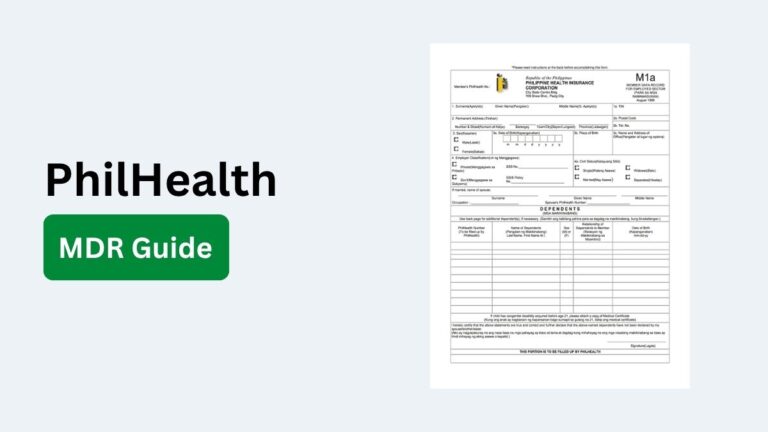
After signing in, you can check your membership status, review your contribution history, access your Member Data Record (MDR), update eligible personal information, and use other available online services.
The portal is designed to make PhilHealth transactions faster, more convenient, and accessible from anywhere with an internet connection.
PhilHealth Login Requirements
Before you can access your PhilHealth online account, you need to meet a few basic requirements. Having these ready will help you log in smoothly and reduce the chances of encountering login errors or verification issues.
- Registered PhilHealth online account: You must have an existing PhilHealth Member Portal account. If you have not registered yet, you need to create an account before you can log in.
- PhilHealth Identification Number (PIN): Your PhilHealth ID number may be required during account registration or when verifying your identity for account recovery.
- Registered email address: Use the same email address that is linked to your PhilHealth online account. Password reset instructions and important notifications are sent to this email.
- Correct password: Enter the password you created during registration. Make sure Caps Lock is turned off if your password contains uppercase and lowercase letters.
- Stable internet connection: A reliable internet connection helps ensure the login page loads correctly and prevents interruptions during the sign in process.
- Compatible web browser: Use an updated browser such as Google Chrome, Microsoft Edge, Mozilla Firefox, or Safari for the best experience and improved security.
- Access to your mobile phone or email: You may need to receive a verification code or security notification if PhilHealth requires additional identity verification.
- Updated personal information: Keeping your email address and contact number current makes it easier to recover your account and receive important updates from PhilHealth.
How to Log In to Your PhilHealth Account
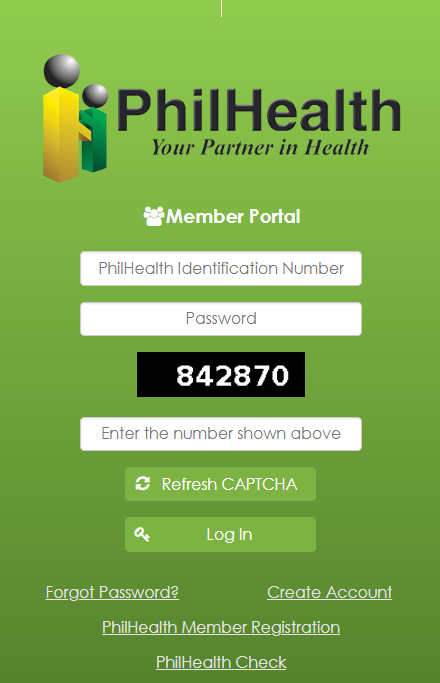
Logging in to your PhilHealth Member Portal only takes a few minutes if you already have a registered online account. Once you sign in successfully, you can access your membership details, check your contributions, download your Member Data Record (MDR), and use other available online services. Follow these simple steps to log in securely.
Step 1: Visit the PhilHealth Member Portal
Open your preferred web browser and go to the official PhilHealth Member Portal login page. Always make sure you are using the official PhilHealth website to protect your personal information and avoid phishing websites.
Step 2: Enter Your Login Credentials
On the login page, enter the email address you used when registering your PhilHealth online account. Then type your password carefully. Double check for typing mistakes and make sure Caps Lock is turned off if your password contains uppercase letters.
Step 3: Complete the Security Verification
If the portal requests additional verification, complete the required security check. Depending on your account settings, you may need to enter a one time verification code sent to your registered email address or complete another verification step before you can continue.
Step 4: Click the Login Button
After confirming that your login details are correct, click the Login or Sign In button. Wait a few moments while the system verifies your credentials and loads your account dashboard.
Step 5: Access Your Member Dashboard
Once logged in, you will be taken to your PhilHealth Member Dashboard. From here, you can view your membership profile, check your contribution history, access your Member Data Record (MDR), update eligible account information, and use other online member services available through the portal.
Step 6: Log Out When You Are Finished
After completing your transactions, click the Log Out button, especially if you are using a shared or public computer. Logging out helps keep your PhilHealth account secure and prevents unauthorized access to your personal information.
How to Register Before Logging In
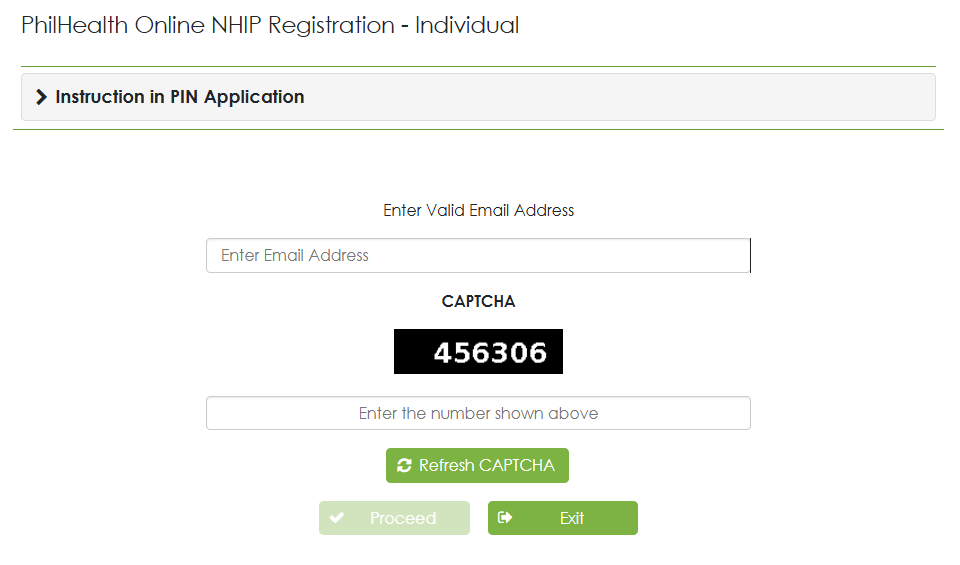
If you do not have a PhilHealth Member Portal account yet, you must register first before you can log in. The registration process is simple and requires only a few personal details for identity verification. Once your account is created and activated, you can access various online PhilHealth services anytime.
Check Your Eligibility
Before registering, make sure you are an active PhilHealth member with a valid PhilHealth Identification Number (PIN). Employees, self employed individuals, voluntary members, overseas Filipino workers (OFWs), sponsored members, and senior citizens can register for an online account if they meet the portal’s requirements.
Prepare the Required Information
Gather the information you will need during registration to make the process faster. This usually includes:
- PhilHealth Identification Number (PIN)
- Full name
- Date of birth
- Registered email address
- Mobile phone number
- Other personal details requested for identity verification
Ensure that all information matches your PhilHealth membership records to avoid registration errors.
Create Your PhilHealth Online Account
Visit the official PhilHealth Member Portal and choose the option to create a new account. Fill in the required information, create a strong password, and submit your registration. You may receive a verification email or security code to confirm your account.
After your account is successfully activated, you can return to the login page and sign in using your registered email address and password.
If you need more detailed account registration guide read this registration guideline and complete the account creation process.
How to Reset Your PhilHealth Login Password
Forgetting your PhilHealth password does not mean you have lost access to your account. The Member Portal includes a password recovery feature that lets you create a new password and regain access in just a few steps. Make sure you have access to the email address registered with your PhilHealth account before starting the reset process.
Use the Forgot Password Option
Go to the official PhilHealth Member Portal login page and click the Forgot Password link. This will take you to the account recovery page where you can begin the password reset process.
Verify Your Identity
Enter the required information, such as your registered email address or other requested account details. PhilHealth may ask you to complete a security verification to confirm that you are the account owner.
Check Your Email
After submitting your request, check your registered email inbox for a password reset message. If you do not see the email within a few minutes, check your Spam or Junk folder.
Create a New Password
Open the password reset link provided in the email and create a new password. Choose a password that is strong and unique by using a combination of uppercase and lowercase letters, numbers, and special characters.
Log In With Your New Password
Return to the PhilHealth login page and sign in using your registered email address and your newly created password. If the login is successful, you will be redirected to your Member Dashboard.
If You Still Cannot Access Your Account
If you do not receive the password reset email, no longer have access to your registered email address, or continue to experience login problems, contact PhilHealth through its official customer support channels for further assistance and account verification.
Common PhilHealth Login Problems and Fixes
Although the PhilHealth Member Portal is easy to use, you may occasionally encounter login issues. Most problems can be resolved within a few minutes by checking your account details, browser settings, or internet connection. Below are the most common PhilHealth login problems and practical ways to fix them.
- Incorrect email address or password: Double check that you entered the correct registered email address and password. Make sure there are no typing errors and that Caps Lock is turned off.
- Forgotten password: Click the Forgot Password option on the login page and follow the instructions to create a new password using your registered email address.
- Forgotten registered email address: If you cannot remember which email is linked to your account, contact PhilHealth customer support for account verification and assistance.
- Account not yet registered: If you have never created a PhilHealth Member Portal account, complete the online registration process before attempting to log in.
- Account locked after multiple failed attempts: Too many unsuccessful login attempts may temporarily lock your account for security reasons. Wait for the lockout period to end or contact PhilHealth if the issue continues.
- Verification code not received: Check your Spam or Junk folder and ensure your email address or mobile number is active. You can also request a new verification code if the option is available.
- Website not loading properly: Refresh the page, clear your browser cache and cookies, or try opening the portal in another supported browser.
- Slow or unstable internet connection: A weak internet connection may prevent the login page from loading or cause login requests to fail. Switch to a more stable network and try again.
- Browser compatibility issues: Use the latest version of Google Chrome, Microsoft Edge, Mozilla Firefox, or Safari for the best performance and security.
- Temporary server maintenance: The PhilHealth portal may occasionally be unavailable due to scheduled maintenance or technical updates. Wait for some time and try logging in again.
- Security warning or suspicious website: Always verify that you are accessing the official PhilHealth website before entering your login credentials. Avoid clicking login links from unknown emails or messages.
- Still unable to log in: If none of the above solutions work, contact PhilHealth through its official customer service channels for account verification and technical support.
What You Can Do After Logging In
After successfully logging in to the PhilHealth Member Portal, you can access several online services that help you manage your membership without visiting a PhilHealth office. From checking your contribution records to updating your account information, the portal makes many common transactions faster and more convenient.
Check Your Membership Status
View your current PhilHealth membership status to confirm that your account is active and your personal information is correctly recorded in the system.
View Your Contribution History
Access your contribution records to see posted payments, contribution dates, and other relevant details. This is useful for monitoring your payment history and verifying that contributions have been credited.
Access Your Member Data Record (MDR)
View, download, or print your Member Data Record (MDR). This document is often required when applying for healthcare services, updating records, or completing employment related requirements.
Update Eligible Personal Information
You may be able to update certain account details, such as your contact information, email address, or other eligible personal information, depending on the services available through the Member Portal.
Check Your Personal Profile
Review your registered information, including your PhilHealth Identification Number (PIN), name, contact details, and membership category to ensure everything is accurate and up to date.
Monitor Available Online Services
The Member Portal provides access to various online member services as they become available. Depending on your account and PhilHealth updates, you may be able to complete additional transactions without visiting a branch office.
Stay Updated With PhilHealth Announcements
View important notices, service updates, and announcements related to your membership and online services so you stay informed about any changes that may affect your account.
How to Update Your PhilHealth Account Information
Keeping your PhilHealth account information accurate helps prevent delays when accessing benefits, receiving important notifications, or using online services. If your email address, mobile number, or other personal details have changed, you should update them as soon as possible. Follow these steps to update your account information.
Step 1: Log In to Your PhilHealth Member Portal
Visit the official PhilHealth Member Portal and sign in using your registered email address and password. Once logged in, you will be directed to your Member Dashboard.
Step 2: Open Your Profile or Account Settings
From the dashboard, navigate to the Profile, Account Settings, or similar section where your personal information is displayed. This is where you can review the details associated with your membership.
Step 3: Review Your Current Information
Carefully check your name, email address, mobile number, mailing address, and other available details. Verify that all information is correct before making any changes.
Step 4: Update the Required Information
Edit the fields that need to be updated. Depending on the available online services, you may be able to change your contact information directly through the portal. Some personal details may require additional verification or may need to be updated through a PhilHealth branch.
Step 5: Complete the Verification Process
If requested, confirm your identity by entering a verification code sent to your registered email address or mobile phone. This security step helps protect your account from unauthorized changes.
Step 6: Save Your Changes
After reviewing the updated information, click the Save, Submit, or Update button. Wait for the system to confirm that your changes have been successfully recorded.
Step 7: Verify the Updated Information
Refresh your profile or sign in again to confirm that the updated information appears correctly in your account. If the changes are not reflected or an error occurs, contact PhilHealth through its official customer support channels for assistance.
How to Recover Your PhilHealth Account
If you cannot access your PhilHealth account because you forgot your login credentials, lost access to your registered email, or your account has been locked, you can recover it by following the appropriate recovery process. In most cases, account recovery only takes a few steps, provided you can verify your identity.
Recover Your Account Using the Forgot Password Option
Visit the official PhilHealth Member Portal and click the Forgot Password link on the login page. Enter your registered email address and follow the instructions sent to your inbox to create a new password. Once the password has been reset, you can log in normally.
Recover Your Account if You Lost Access to Your Email
If you no longer have access to the email address linked to your PhilHealth account, you will need to contact PhilHealth for assistance. Be prepared to verify your identity using your PhilHealth Identification Number (PIN), personal information, and any other details requested by the support team.
Unlock a Locked Account
If your account has been temporarily locked after multiple unsuccessful login attempts, wait for the lockout period to expire and try again. If the account remains inaccessible, contact PhilHealth customer support to request account recovery or unlocking.
Verify Your Identity
During the recovery process, PhilHealth may ask you to confirm your identity for security purposes. Provide accurate information that matches your membership records to avoid delays.
Create a New Secure Password
After your identity has been verified, create a strong password using a combination of uppercase and lowercase letters, numbers, and special characters. Avoid using easily guessed passwords such as your birthday or name.
Confirm That Your Account Is Working
Once your account has been recovered, sign in to the Member Portal using your updated login credentials. Review your profile information to ensure your email address, mobile number, and other account details are accurate.
Contact PhilHealth if Recovery Fails
If you are unable to recover your account using the available online options, reach out to PhilHealth through its official customer service channels. The support team can guide you through additional verification steps and help restore access to your account.
PhilHealth Login Security Tips
Your PhilHealth account contains personal and membership information that should always be protected. Following good security practices can help prevent unauthorized access, identity theft, and account recovery issues. Use the tips below to keep your PhilHealth Member Portal account secure.
- Use a strong and unique password: Create a password that combines uppercase and lowercase letters, numbers, and special characters. Avoid using common words, birthdays, or other easily guessed information.
- Keep your login credentials private: Never share your email address, password, or verification codes with anyone, even if they claim to represent PhilHealth.
- Log in only through the official PhilHealth website: Always verify that you are using the official PhilHealth Member Portal before entering your credentials. Avoid clicking login links from suspicious emails, text messages, or social media posts.
- Do not save your password on public computers: If you log in from a shared device, never allow the browser to remember your password. Always log out after finishing your session.
- Use a secure internet connection: Avoid signing in while connected to unsecured public WiFi networks. If necessary, use a trusted private network or a secure mobile data connection.
- Keep your browser and device updated: Install the latest updates for your web browser, operating system, and antivirus software to protect against known security vulnerabilities.
- Monitor your account regularly: Sign in periodically to review your account information and report any unexpected changes or suspicious activity to PhilHealth immediately.
- Update your contact information: Keep your registered email address and mobile number current so you can receive password reset instructions and important security notifications.
- Beware of phishing scams: Ignore emails, calls, or messages requesting your login credentials or verification codes. PhilHealth will never ask you to disclose your password through unofficial channels.
- Log out after every session: Always click the Log Out button when you finish using the Member Portal, especially on shared or public devices, to prevent unauthorized access.
When You Should Contact PhilHealth Support
Most PhilHealth login and account issues can be resolved by using the Member Portal’s built in tools, such as the password reset feature. However, some situations require assistance from the official PhilHealth support team. If you encounter any of the following issues, it is best to contact PhilHealth directly for guidance and account verification.
You Cannot Recover Your Account
If the password recovery process does not work, you no longer have access to your registered email address, or you cannot verify your identity, contact PhilHealth for account recovery assistance.
Your Account Is Locked
Multiple unsuccessful login attempts may temporarily lock your account. If you still cannot sign in after the lockout period ends, PhilHealth support can help restore access to your account.
Your Membership Information Is Incorrect
If your name, date of birth, PhilHealth Identification Number (PIN), or other personal details are incorrect and cannot be updated through the Member Portal, reach out to PhilHealth for further assistance.
You Are Unable to Register an Online Account
If your online registration repeatedly fails or your membership information cannot be verified during registration, the support team can help identify and resolve the issue.
You Suspect Unauthorized Access
Contact PhilHealth immediately if you notice unfamiliar account activity, unexpected profile changes, or believe someone else has accessed your account. Prompt action helps protect your personal information.
You Need Help With Online Services
If you experience technical issues while accessing your Member Data Record (MDR), contribution records, or other online services, PhilHealth customer support can provide troubleshooting assistance.
You Have Questions About Your Membership or Benefits
If you need clarification about your membership status, contributions, eligibility, or available benefits, PhilHealth representatives can provide official and up to date information based on your account.