
PhilHealth Employer Login: Complete Employee Login Guide
Managing your employees’ PhilHealth contributions starts with one important step, accessing the PhilHealth Employer Login portal. Whether you need to submit premium contributions, update employee records, generate a Statement of Premium Account (SPA), or review payment history, the employer portal gives you a secure and convenient way to handle these tasks online.
If you are logging in for the first time or facing issues with your account, knowing the correct process can save you time and prevent unnecessary delays. Many employers also have questions about registration, password recovery, contribution submission, and portal security.
In this guide, you’ll learn everything you need to know about the PhilHealth Employer Login. We will explain how to sign in, create an employer account, fix common login problems, manage employee information, submit contributions, and use the portal’s key features with confidence.
By the end of this article, you’ll have a clear understanding of how to use the PhilHealth employer portal efficiently and securely.
What Is the PhilHealth Employer Portal?
PhilHealth Employer Portal is an online platform that allows registered employers to manage their PhilHealth obligations in one secure place. Instead of visiting a PhilHealth office for routine tasks, employers can log in to the portal to submit employee contribution information, generate billing documents, review payment records, and update employer details.
The portal is designed to make the contribution process faster, more accurate, and more convenient for businesses of all sizes. It helps employers stay compliant with PhilHealth requirements while reducing paperwork and manual processing.
Some of the main functions of the PhilHealth Employer Portal include:
- Secure employer account login and account management
- Employee registration and information updates
- Generation of the Statement of Premium Account (SPA)
- Online submission of premium contribution reports
- Viewing contribution and payment history
- Downloading reports and payment records
- Updating employer profile information when needed
Who Can Use the PhilHealth Employer Login?
The PhilHealth Employer Login is intended for organizations and individuals responsible for managing employee PhilHealth contributions. To access the portal, users must have a registered employer account and valid login credentials issued through PhilHealth. The system is designed to help employers complete contribution related tasks securely and efficiently.
- Private employers who need to register employees, submit monthly contributions, and manage employer records.
- Government agencies and public sector employers responsible for handling PhilHealth contributions for their employees.
- Business owners operating sole proprietorships, partnerships, or corporations with registered employees.
- Human Resources (HR) personnel authorized to manage employee information and process PhilHealth requirements on behalf of the company.
- Payroll officers who prepare, submit, and monitor employee premium contributions and payment records.
- Authorized company representatives who have been given permission to access and manage the employer’s PhilHealth account.
- Companies with existing PhilHealth Employer Identification Numbers (PENs) that have completed the employer registration process.
- Newly registered employers who have activated their online employer portal account and received their login credentials.
Requirements Before You Log In
Before signing in to the PhilHealth Employer Portal, make sure you have everything needed for a successful login. Having the correct credentials and a properly configured device helps you avoid login errors, account lockouts, and delays when managing employee contributions.
- PhilHealth Employer Identification Number (PEN): Your company must have a valid PhilHealth Employer Identification Number, which confirms your registration as an employer.
- Registered username: Use the username associated with your employer portal account. Double check for spelling mistakes before logging in.
- Correct password: Enter the password you created during registration. Passwords are case sensitive, so make sure the capitalization is correct.
- Registered email address: Keep access to your registered email account, as it may be required for password resets, account verification, or receiving important notifications.
- Stable internet connection: A reliable internet connection helps prevent login interruptions and errors while using the portal.
- Compatible web browser: Access the portal using an updated browser such as Google Chrome, Microsoft Edge, Mozilla Firefox, or Safari for the best performance.
- Updated browser settings: Enable cookies and JavaScript if they are disabled, as some portal features may not work correctly without them.
- Authorized account access: Only employers or authorized HR and payroll personnel should use the employer login credentials to keep company information secure.
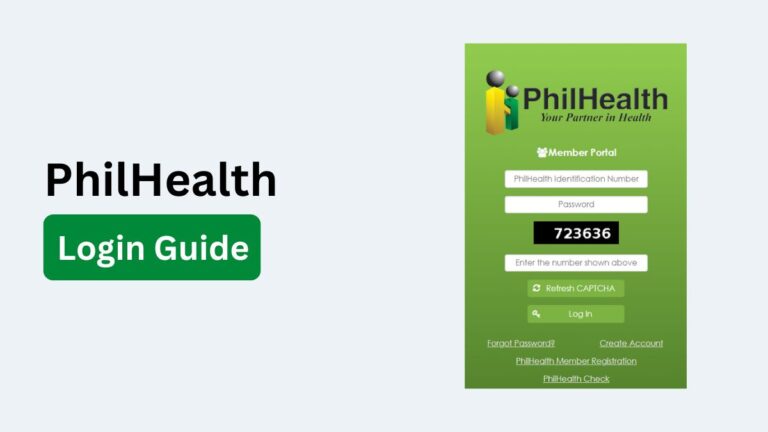
How to Access the PhilHealth Employer Login Portal

Accessing the PhilHealth Employer Login portal is simple when you have your login credentials ready. By following the correct steps, employers can securely access their accounts to manage employee records, submit premium contributions, and use other online employer services without visiting a PhilHealth office.
Visit the Official PhilHealth Employer Portal
Open your preferred web browser and go to the official PhilHealth Employer Portal. Always use the official website to protect your account and avoid fraudulent or phishing websites that may steal your login information.
Enter Your Login Credentials
On the login page, enter your registered employer username and password in the appropriate fields. Carefully check for typing errors, incorrect capitalization, or extra spaces before proceeding, as passwords are case sensitive.
Complete Any Security Verification
If the portal requires additional verification, such as a CAPTCHA or email confirmation, complete the requested security step. These measures help protect employer accounts from unauthorized access.
Click the Login Button
After verifying that your information is correct, click the Login button. If your credentials are valid, you will be redirected to your employer dashboard, where you can access all available portal features.
Access Employer Services
Once logged in, you can perform various employer-related tasks, including updating employee information, generating the Statement of Premium Account (SPA), submitting premium contribution reports, reviewing payment history, and managing your employer profile.
Log Out After Completing Your Tasks
When you finish using the portal, always click the Log Out button, especially if you are using a shared or public computer. Logging out helps protect your employer account and prevents unauthorized access to sensitive company information.
Read Also: PhilHealth Login Guide
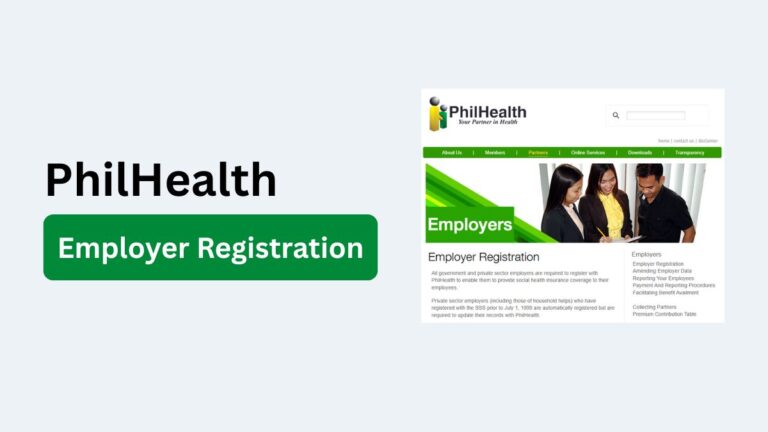
How to Register for a PhilHealth Employer Account
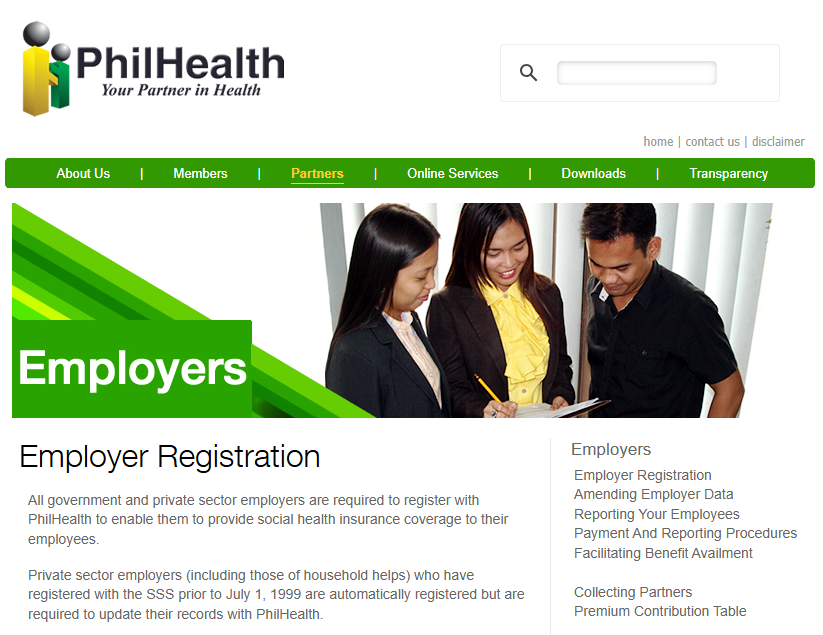
If you are a new employer, you must register your business with PhilHealth before you can access the Employer Portal and use online services like the Electronic Premium Remittance System (EPRS). Once your registration is approved and your employer account is activated, you can log in to manage employee contributions and other employer transactions.
Confirm Your Employer Eligibility
Before registering, make sure your business or organization is required to register as a PhilHealth employer. Private companies, government agencies, and other employers with workers covered by PhilHealth are generally eligible to apply.
Prepare the Required Documents
Gather the documents and information needed for employer registration. These typically include your business registration documents, PhilHealth Employer Identification Number (PEN) if already assigned, valid identification of the authorized representative, business details, and other supporting documents requested by PhilHealth.
Complete the Employer Registration
Register your business through the official PhilHealth employer registration process. If you are applying for online access to the Electronic Premium Remittance System (EPRS), complete the Electronic PhilHealth Online Access Form (ePOAF) using your employer information and the details of your designated employer representative.
Verify and Activate Your Account
After submitting your registration, follow the verification instructions provided by PhilHealth. You may need to verify your registered email address or wait for account approval. Once your account is activated, create your login credentials and sign in to the Employer Portal to start managing employee records, premium contributions, and other employer services.
How to Reset a Forgotten PhilHealth Employer Password
If you’ve forgotten your PhilHealth Employer Portal password, you can usually reset it using the account’s registered credentials. The password recovery process is designed to restore access securely so you can continue managing employee contributions and employer records. If self-service recovery doesn’t work, PhilHealth support can help you regain access.
Open the Password Recovery Page
Go to the official PhilHealth Employer Portal login page and click the Forgot Password option to begin the password recovery process.
Enter Your Account Information
Provide the required details, such as your User ID and the registered email address associated with your employer account. Make sure the information matches your account records exactly.
Verify Your Identity
Follow the on-screen verification steps. Depending on the system, you may need to complete a security check before the password reset request is processed.
Check Your Email for Reset Instructions
PhilHealth will send password reset instructions to your registered email address. Open the email and follow the provided link or instructions to continue the recovery process. If you do not see the email, check your spam or junk folder.
Create a New Password
Choose a new password that meets the portal’s requirements. After saving the new password, use it to sign in to your employer account. The EPRS user manual notes that passwords have specific formatting requirements, so follow the instructions shown during the reset process.
Contact PhilHealth Support if You Cannot Reset Your Password
If you no longer have access to your registered email, your account is locked, or the password reset process fails, contact your nearest PhilHealth office or official support channel for assistance. They can guide you through the account recovery process and any required verification steps.
Common PhilHealth Employer Login Problems and Solutions
Although the PhilHealth Employer Portal is designed for easy access, employers may occasionally experience login issues. Most problems are caused by incorrect credentials, browser settings, internet connectivity, or temporary server maintenance. Understanding these common issues and their solutions can help you regain access quickly.
Incorrect Username or Password
One of the most common login problems is entering an incorrect username or password. Since passwords are case sensitive, even a small typing mistake can prevent access.
Solution:
- Re-enter your login credentials carefully.
- Check if the Caps Lock key is turned on.
- Make sure you are using the correct employer account username.
- Use the Forgot Password option if you cannot remember your password.
Locked or Inactive Account
Multiple unsuccessful login attempts may temporarily lock your employer account. In some cases, accounts may also become inactive after a long period of non-use.
Solution:
- Wait for the lockout period to expire if applicable.
- Reset your password using the password recovery feature.
- Contact PhilHealth support if your account remains locked or inactive.
Website Not Loading
Sometimes the Employer Portal may not load due to internet connectivity issues or temporary server maintenance.
Solution:
- Check your internet connection.
- Refresh the webpage or restart your browser.
- Try accessing the portal again after a few minutes if maintenance is in progress.
Browser Compatibility Issues
Older browsers or outdated browser settings can prevent the portal from working correctly.
Solution:
- Use the latest version of Google Chrome, Microsoft Edge, Mozilla Firefox, or Safari.
- Clear your browser’s cache and cookies.
- Enable JavaScript and cookies if they are disabled.
Email Verification Problems
If you do not receive verification or password reset emails, you may not be able to complete the login or recovery process.
Solution:
- Check your spam or junk folder.
- Verify that you are using the registered email address.
- Add PhilHealth’s email domain to your safe sender list if necessary.
- Contact PhilHealth if the email still does not arrive.
Server Maintenance and Downtime
The PhilHealth Employer Portal may occasionally be unavailable because of scheduled maintenance or unexpected technical issues.
Solution:
- Wait until the maintenance period is complete.
- Check official PhilHealth announcements for service updates.
- Try logging in again during off-peak hours if the website is experiencing heavy traffic.
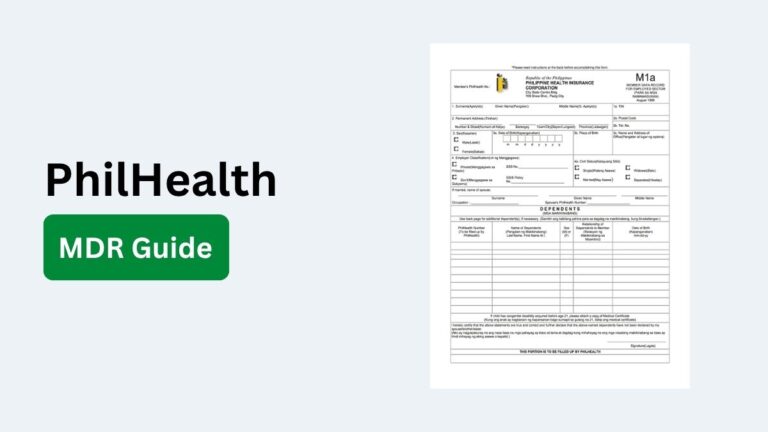
How to Add or Update Employee Information
The PhilHealth Employer Portal allows employers to keep employee records accurate and up to date. Whether you are hiring a new employee or correcting existing information, maintaining accurate records helps ensure that PhilHealth contributions are properly credited and processed without delays.
Add a New Employee
Log in to the Employer Portal and navigate to the employee management section. Enter the new employee’s required details, including their PhilHealth Identification Number (PIN), personal information, and employment details. Review the information carefully before submitting it to avoid errors.
Update Existing Employee Records
If an employee’s information changes, such as their name, civil status, employment status, or other eligible details, locate the employee’s record in the portal and edit the necessary fields. Verify that all updates are accurate before saving the changes.
Correct Employee Information Errors
If you notice incorrect employee information after submission, update the record through the Employer Portal if editing is available. For changes that cannot be made online, follow PhilHealth’s correction procedures and submit any required supporting documents.
Review and Save Changes
Before finalizing any additions or updates, review all entered information to ensure accuracy. Saving correct employee records helps prevent contribution errors, payment issues, and delays in processing PhilHealth benefits.
Keep Employee Records Updated Regularly
Regularly review your employee database to ensure all records remain current. Updating information promptly when employees join, leave, or experience changes in employment helps maintain compliance with PhilHealth requirements and ensures accurate contribution reporting.
PhilHealth Employer Payment Options
PhilHealth offers several payment methods to make it easier for employers to remit employee premium contributions on time. The available options allow businesses to choose the most convenient payment channel while ensuring contributions are processed accurately and efficiently.
- Online banking: Many accredited banks allow employers to pay PhilHealth contributions through their online banking platforms, making payments faster without visiting a branch.
- Over the counter bank payments: Employers can pay at participating bank branches by presenting the required payment reference or Statement of Premium Account (SPA).
- Accredited payment centers: PhilHealth accepts payments through selected payment centers, providing an alternative option for employers who prefer in-person transactions.
- Electronic Premium Remittance System (EPRS): Employers using the EPRS can generate their Statement of Premium Account (SPA) and complete the payment process through supported payment channels.
- Auto debit arrangements: Some accredited banks offer automatic debit services, allowing employers to schedule regular premium payments and avoid missed deadlines.
- Digital payment channels: Depending on current PhilHealth partnerships, employers may be able to pay using approved electronic payment platforms and digital financial services.
- Corporate banking services: Businesses with corporate banking accounts may use their bank’s business payment portal to remit PhilHealth contributions securely.
- Official payment partners: Always use PhilHealth-accredited banks and payment partners to ensure your payments are credited correctly and your contribution records remain accurate.
Employer Responsibilities Under PhilHealth
Employers play an important role in ensuring that employees receive their PhilHealth benefits. By fulfilling their responsibilities, businesses remain compliant with PhilHealth regulations and help employees maintain continuous health insurance coverage. Timely registration, accurate reporting, and prompt contribution payments are essential for avoiding penalties and ensuring smooth benefit processing.
- Register eligible employees: Enroll all qualified employees with PhilHealth as required and ensure their membership information is complete and accurate.
- Remit monthly premium contributions: Deduct the employee’s share, add the employer’s share, and remit the total contribution within the prescribed deadlines.
- Maintain accurate employee records: Keep employee information up to date, including new hires, resignations, changes in employment status, and other relevant details.
- Submit correct contribution reports: File accurate premium remittance reports through the PhilHealth Employer Portal or other approved submission methods.
- Update employer information: Notify PhilHealth of any changes to your business details, such as company name, address, contact information, or authorized representatives.
- Keep payment records: Maintain copies of payment receipts, Statements of Premium Account (SPA), and contribution reports for future reference and verification.
- Protect employee information: Safeguard employee personal and contribution data by allowing access only to authorized personnel and using secure login practices.
- Comply with PhilHealth regulations: Follow all applicable PhilHealth policies, contribution schedules, and reporting requirements to avoid penalties, delayed processing, or compliance issues.
PhilHealth Employer Login Security Best Practices
Protecting your PhilHealth Employer account is essential because it contains sensitive business and employee information. Following good security practices helps prevent unauthorized access, protects contribution records, and ensures your employer account remains safe from cyber threats.
Use a Strong and Unique Password
Create a password that is difficult to guess by combining uppercase and lowercase letters, numbers, and special characters. Avoid using common words, company names, birthdays, or other easily identifiable information. It is also a good idea to use a unique password that is not shared with other online accounts.
Keep Your Login Credentials Private
Only authorized personnel, such as HR or payroll staff, should have access to the employer account. Never share your username or password through email, text messages, or unsecured communication channels. If an authorized employee leaves the company, update your login credentials immediately.
Access the Official PhilHealth Website Only
Always log in through the official PhilHealth Employer Portal. Avoid clicking login links from unknown emails, advertisements, or third-party websites, as they may lead to phishing pages designed to steal your account information. Verify the website address before entering your credentials.
Use a Secure Internet Connection
Log in using a trusted and secure internet connection whenever possible. Avoid accessing the employer portal through public Wi-Fi networks, as unsecured connections can expose your login information to potential attackers.
Log Out After Every Session
Always sign out of your employer account after completing your tasks, especially when using a shared or public computer. Logging out helps prevent unauthorized users from accessing your employer dashboard after you leave the device.
Keep Your Browser and Device Updated
Use the latest version of your web browser and install security updates for your computer or mobile device. Updated software provides better protection against security vulnerabilities and improves compatibility with the PhilHealth Employer Portal.
Monitor Your Employer Account Regularly
Review your employer account periodically to ensure employee records, contribution submissions, and payment history are accurate. If you notice unfamiliar activity or unauthorized changes, change your password immediately and contact PhilHealth support for assistance.